How to Edit Elegantflyer Templates: A Guide to Customizing PSD Files in Photoshop and Photopea
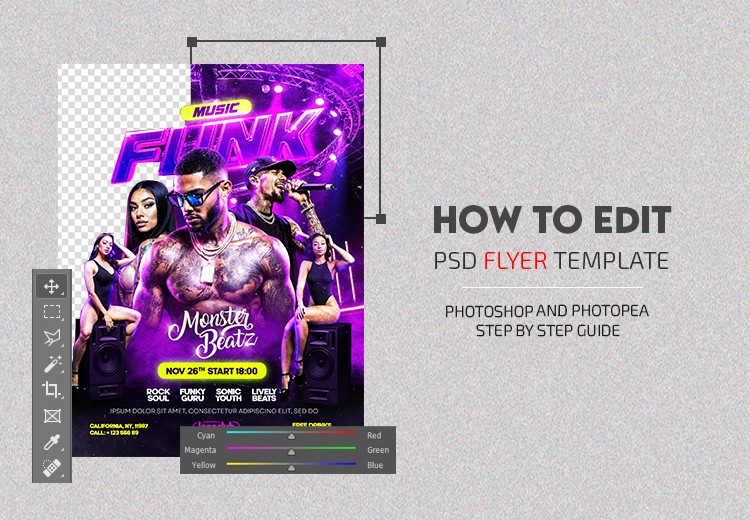
Three easy ways to edit our templates:
1) Adobe Photoshop — the best option for full control, professional editing, and perfect print quality.
2) Photopea (Free & Online) — completely free tool where you can open and edit any of our PSD templates right in your browser, no installation required.
3) ElegantFlyer Online Maker (Free, Beta) — simplified version for quick edits. We’re constantly improving it and adding more templates every week.
Option 1 — Adobe Photoshop - Maximum control and quality
Description:
Get the best results with Adobe Photoshop — full control over layers, effects, and colors. Perfect for professional printing and high-quality social media visuals.
You can download Photoshop and use the first 7 days for free → Start Download
Steps:
- Download the template: you have 3 free downloads, plus +5 extra when you sign up, or get unlimited access with a Premium Membership.
- Unzip the PSD file from the archive.
- Install the fonts included in the “Fonts” folder before opening the PSD file.
- Open the PSD file in Adobe Photoshop — make sure Photoshop is installed on your computer.
- Replace the text with your own.
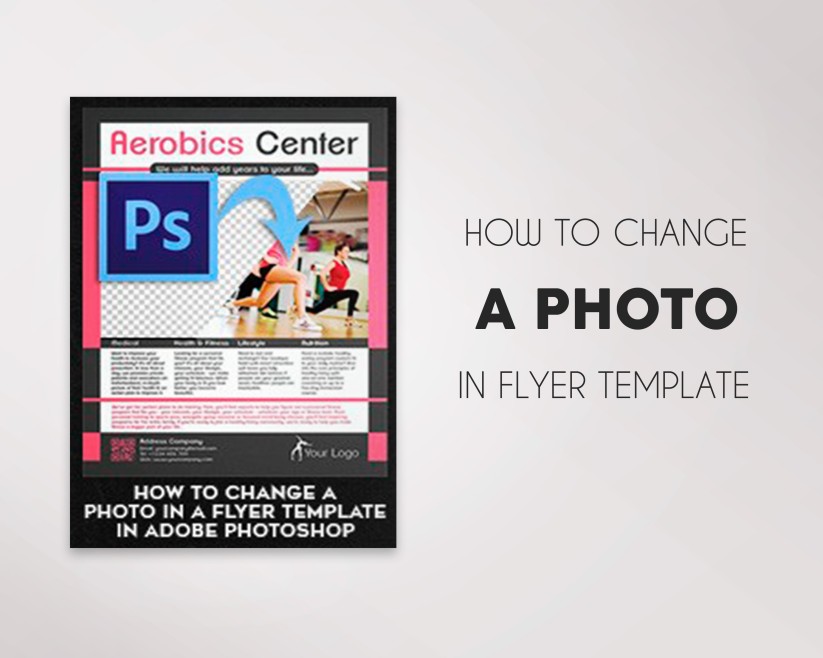
- Change the photo using a Smart Object (double-click → insert your image → Save).
- Export your final design as JPEG / PNG / PDF
Option 2 — Photopea (Free & Online) - Edit any PSD template for free, directly in your browser
Description:
No Photoshop? No problem. Photopea is a completely free online editor that works right in your browser — no installation needed. You can open and edit any ElegantFlyer PSD file in seconds.
Note:
Photopea is 100% free and works on any device. If a font doesn’t display correctly, install it on your computer or choose an alternative font from the list
Steps:
- Download the template: you have 3 free downloads, plus +5 extra when you sign up, or get unlimited access with a Premium Membership.
- Unzip the PSD file from the archive.
- Open Photopea — go to photopea.com.
- Upload the PSD file → click File → Open and select your template.
- Replace the text and photos just like in Photoshop (use the Text and Move tools).
- Export your design → File → Export As → JPEG / PNG / PDF.
Option 3 — ElegantFlyer Online Maker (Free, Beta) - Edit templates instantly — no software required
Our free online maker lets you customize templates right on the website — no Photoshop or installation needed. It’s a simplified version designed for quick edits like changing text, photos, and colors. We’re constantly improving it and adding more templates every week.
Steps:
- Choose a template and click “Open in Editor” (available on selected templates).
- Edit the text and photos directly in your browser.
- Adjust colors, backgrounds, and layout with simple tools.
- Download your final design as JPEG / PNG / PDF
FAQ — Frequently Asked Questions
Where can I find the fonts used in the template?
All fonts are listed on each product page and also mentioned in the text file inside the ZIP archive. Most of them are free fonts available on Google Fonts or DaFont, so you can easily download and install them if needed.
Do I need Photoshop to edit your templates?
Not necessarily. You can edit them for free online in Photopea or in our own ElegantFlyer Online Editor (beta).
Photopea shows missing fonts or slightly different effects — is that normal?
Yes. Some advanced Photoshop layer styles may look simplified in Photopea, but you can still fully edit and export your design.
What version of Photoshop do I need?
All our templates work with Photoshop CS4 or higher on Windows or Mac.
Can I use your templates for commercial projects?
Yes, you can use both free and premium templates for personal and commercial purposes — within the limits of our license.
The PSD file doesn’t open or loads slowly — what should I do?
Update Photoshop, close other programs, or clear cache. For quick edits, try opening the same file in Photopea.
How do I prepare my design for printing?
Set the color mode to CMYK, resolution to 300 dpi, and export as PDF or high-quality JPEG.
Can I change the size of the template (e.g., from flyer to poster)?
Yes, but for best quality, adjust the canvas size carefully and keep proportions. Some elements may need repositioning
Why is my download limit reached? How can I get more?
You get 3 free downloads, plus +5 extra when you sign up. To unlock unlimited access, upgrade to a Premium Membership.